Blog

  • My Journey of Switching Career Paths and Finding Success in Product Management

    My Journey of Switching Career Paths and Finding Success in Product Management

    At the beginning of my career journey, I faced a challenge in finding a job that aligned with my education and skillset. Despite having a Bachelor’s Degree in Electrical and Electronic Engineering, I struggled to find job opportunities in the fields of EEE in Bangladesh. However, I discovered my passion for software and web development and decided to pursue a career change that would allow me to utilize these skills. I was determined to find a position that would allow me to merge my education with my interests. I was committed to investing the time and effort required to make this transition, even though I knew it would be challenging.

    In the beginning, I looked into various software development careers before deciding that the WordPress industry was the best fit for my skills and interests.

    My initial plan was to find a job with a WordPress-focused software company. I knew it would be difficult to break into this field, but I was determined to succeed. I began by expanding my knowledge and skills through self-study and online courses. In addition, I worked on personal projects such as creating my own websites. I was able to learn the technical skills and knowledge required for a career in WordPress through self-study and development.

    In the process, I also completed my MSc degree in Computer Science and Engineering.

    In September 2017, I joined weDevs as a Support Engineer, which was my first step toward a career in WordPress. It allowed me to gain valuable experience and skills in the field. This role helped me to understand customer needs and develop the skills to troubleshoot and provide customer support. I worked hard and dedicatedly, providing customer support, troubleshooting technical issues, and working closely with the development team.
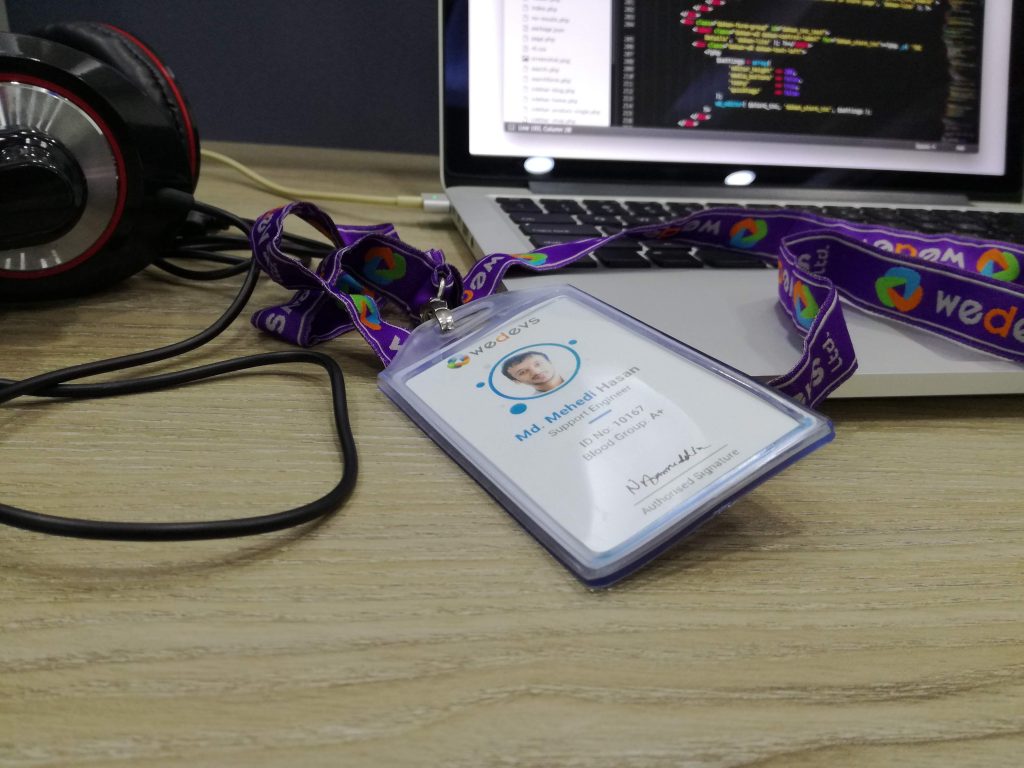
    weDevs ID Card

    After more than two years of working at weDevs, I was promoted to the role of Product Manager in January 2020. I was in charge of WP ERP, WordPress’s first full-fledged enterprise solution.

    This was a huge accomplishment for me, and it allowed me to take on more responsibilities and take the lead on product development. It was a great opportunity for me to apply my skills and knowledge in a more senior role, and to make a meaningful impact on the company’s products and customers.

    What I had to learn to become a Product Manager

    To become a product manager, there were several key skills and areas of knowledge that I had to focus on. These included:

    • Technical Understanding
    • Software Development Lifecycle (SDLC)
    • Agile Methodology and Scrum Team Management
    • Writing Technical Specs And Requirements
    • Knowledge Of User Experience Best Practices
    • Critical Thinking And Analytical Skills
    • Leadership And The Ability To Take Initiative
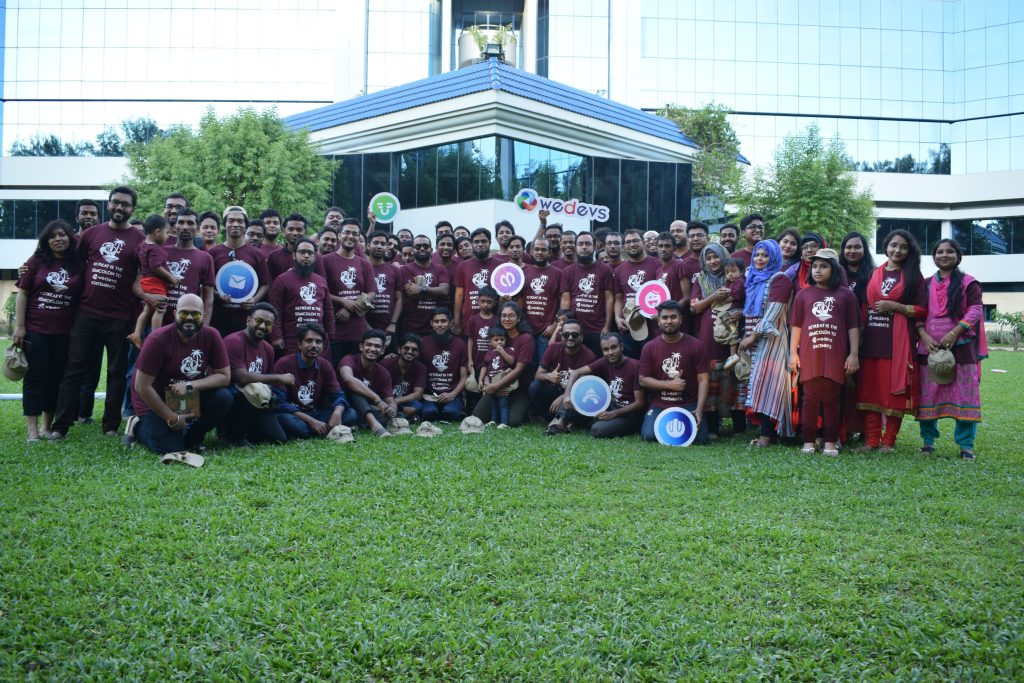
    weDevs annual retreat 2019

    In August 2021, I decided to take on a new challenge and joined rtCamp as a Technical Project Manager. This role was a remote position, and I was working from home in Dhaka, Bangladesh, while my colleagues were based all around the globe. This experience allowed me to learn about managing remote teams and collaborating with people from different cultures and backgrounds. I had to adapt to different communication styles, time zones, and work ethics, this helped me to become more adaptable, and it broadened my perspective. It was a unique and rewarding experience that helped me to develop new skills and to expand my professional network.

    Grazia Magazine, Digital River, Harvard Gazette, rtMedia, and Transcoder were among the important projects I managed while at rtCamp.

    rtCamp team meeting, 2022

    After one year at rtCamp, I decided to move back to my old role as a Product Manager and joined BrainstormForce in August 2022. It was a difficult decision to leave rtCamp as I had formed strong relationships with my colleagues and had grown to appreciate the company culture. I learned a lot from working with my team members and enjoyed being a part of the organization. I had to leave behind some wonderful people who had become my friends, and support system. It was hard to say goodbye to them but I knew that this was an opportunity for me to continue to grow and develop my skills as a Product Manager.
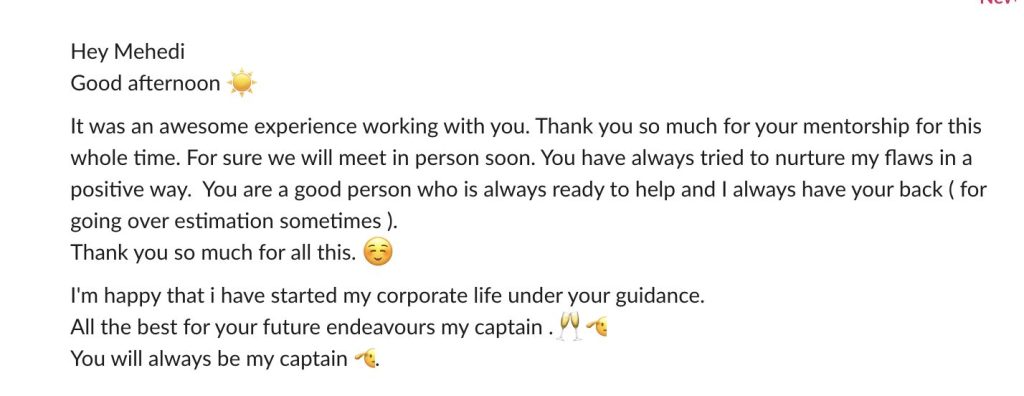
    Message from one of my teammates <3

    This was also a remote position, and I was once again working from home in Dhaka, Bangladesh. Now, I am working here and enjoying my work. At BrainstormForce, I manage Astra— the most popular WordPress theme in history, with over 1.5 million active users.

    I am happy to be back in a product management role and I am excited to continue to grow and learn in this field. I am confident that my previous experience and skills will help me to excel in this role and to contribute to the company’s success.

    Join BrainstromForce if you want to work with me. Check out the current openings at https://brainstormforce.com/join/

    Overall, my journey to becoming a product manager has been a challenging but rewarding experience. It took me time, effort, and patience to acquire the necessary skills and knowledge, and to navigate the various challenges that arose along the way. However, I am proud of what I have accomplished so far, and I am excited to continue growing and learning in this field. I believe that my hard work and dedication have prepared me well for this role and I am eager to take on new challenges and opportunities as I continue to build my career in product management. I am confident that my passion for this field and my commitment to constant learning will help me succeed in this dynamic and exciting industry. I am looking forward to the future with great anticipation and eagerness.

  • Hiding Employee list to the Employees in WPERP

    Hiding Employee list to the Employees in WPERP

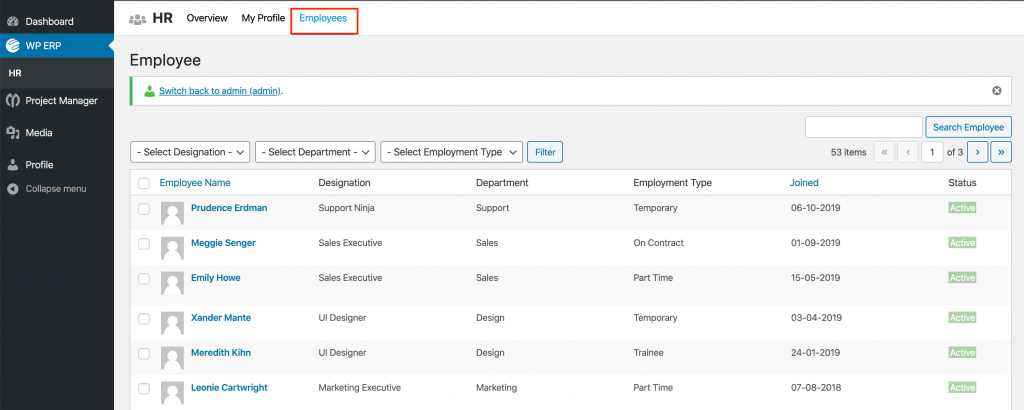
    You may often think, How to hide the Employee list in WPERP. In WPERP, when the Employee login, they can see the list of all Employees. Though they could not see any information that can cause other employee privacy. Employees can see the other Employee list and they can see their profile which contains only Email and Contact number.

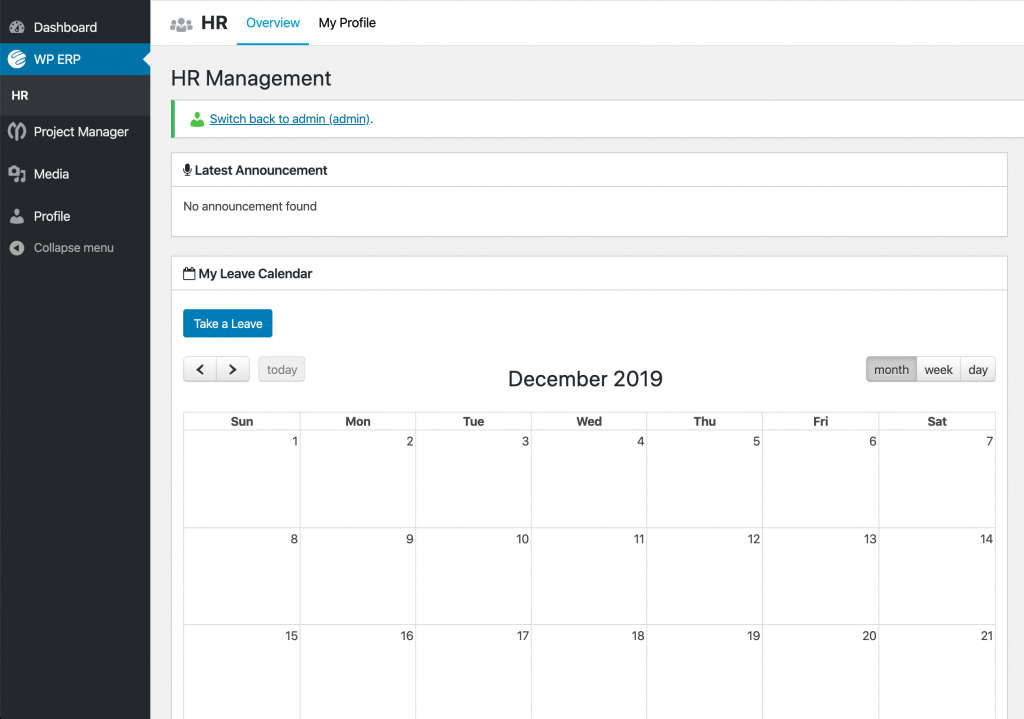
    An employee can see other employees list

    This is actually a default feature of WPERP. It lets the Employees see other Employee profile with just the contact information with the sense that, one Employee may require to contact with another, in their purposes. So, having contact information visible is good to have good communication withing the Employee.

    However, as I provide support for WPERP, I got queries sometimes that they do not want to let the other users see the Employee list. That seems a privacy issue to them and they are concerned with it.

    I do help people with this by guiding them on how they can hide the Employee list for the other Employee. As I do get the same query often, I think it’s good to write about it that people can find it easily.

    How to hide the Employee list in WPERP?

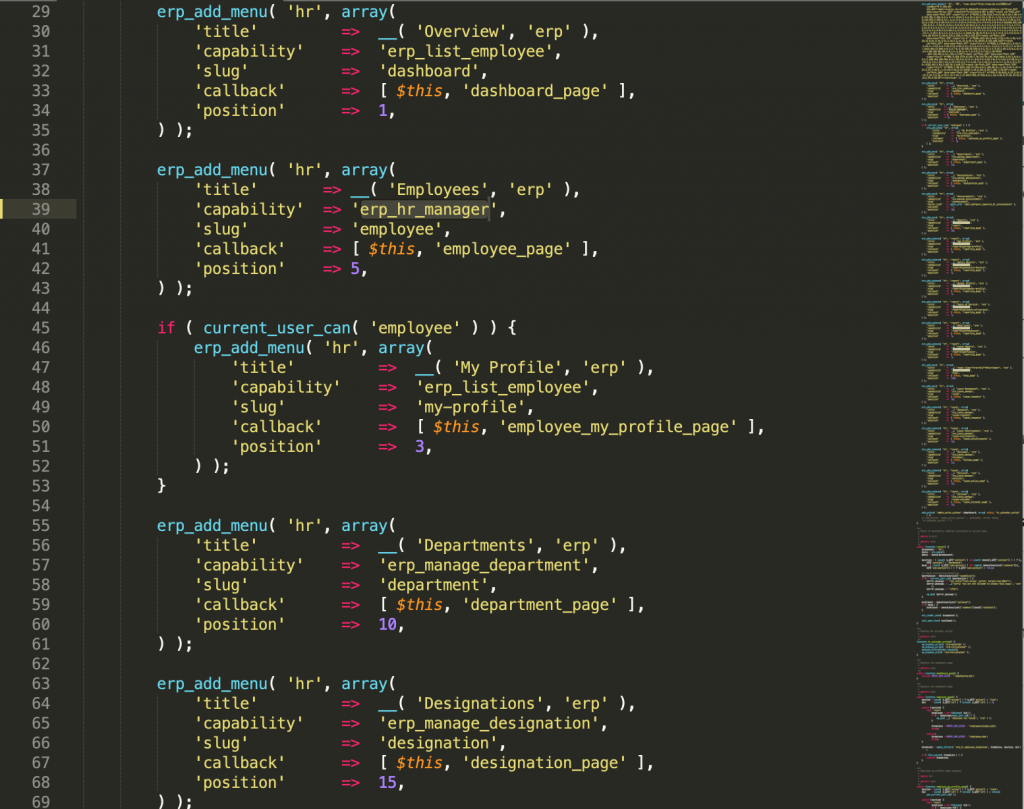
    Well, it’s a simple trick, which you need to change from codes. Just open the file: /erp/modules/hrm/includes/admin/class-menu.php in the line number 39, Replace the erp_list_employee by erp_hr_manager

    So, the code will be like:

    erp_add_menu( 'hr', array(
                'title'       => __( 'Employees', 'erp' ),
                'capability'  => 'erp_hr_manager',
                'slug'        => 'employee',
                'callback'    => [ $this, 'employee_page' ],
                'position'    => 5,
            ) );

    You can replace the codes from the line number 37 to 43. It will be something like this:

    After changing accordingly, you’ll see the Employee menu is hidden for the Employee and that could be seen by the HR Manager Only.

    The Employee list is hidden to the other Employees

    I hope this helps. Feel free to ask in the comment if you get any queries. I love questions 🙂

    You may also like: How to create a documentation site from the scratch

  • How to create a documentation site in WordPress

    How to create a documentation site in WordPress

    Having well-managed documentation can increase your product interest and sales! Yes, I mean it. You can consider documentations as the story of your product. People can read them, people can understand your product by reading them, people can refer them to others.

    Physical, virtual or Digital, documentation is important for all kinds of products. Physical products often come with the printed user guide book but people can lose them easily and they might need help when they do not have the guide book on hand.

    And for the Digital and virtual products, online documentation is the must-have thing to explain your product to the user/customer.

    Why Documentation?

    Say you have an Electronics business or you run a software company. You have your own product to sell to the customers. How do you guide your customers to configure the things after purchase? Telling individual customers by providing email support is difficult, plus time and resource-consuming.

    Let me say a real-life story happened to me. I brought a Kryptonite lock that came from the USA a few months ago. I got a clip with it to hang the lock on the bike. I was struggling with how to set this clip with bike, not even following the user manual. Later, I search online and found their official documentation on it which was well described with the necessary images that helped me to get rid of the thing.

    That’s just a story happened to me. This can happen in many cases, with any kind of product.

    I’m a Support Engineer of a software company, where one of my responsibilities is to make our products understandable to the user/customer. So, most of the time, I observed, having documentation saves our time. 50-60% of users get their query answers directly from the documentations. We also do provide the documentation link when a user/customer asks how to do that, which covers most of the user queries.

    It’s really easy to make them understand if you have a well-decorated/written documentation about the features, how it works and how to configure it.

    How I can create online documentation?

    Well, things are not that complicated if you have a WordPress site already. If you don’t, you can search google on how to create a WordPress site. The thing that’ll require:

    1. A domain or subdomain
    2. A hosting (You can try Bluehost for the affordable price)

    I’m assuming you know how to point a domain into a host and create a WordPress site. If you don’t, I can help you.

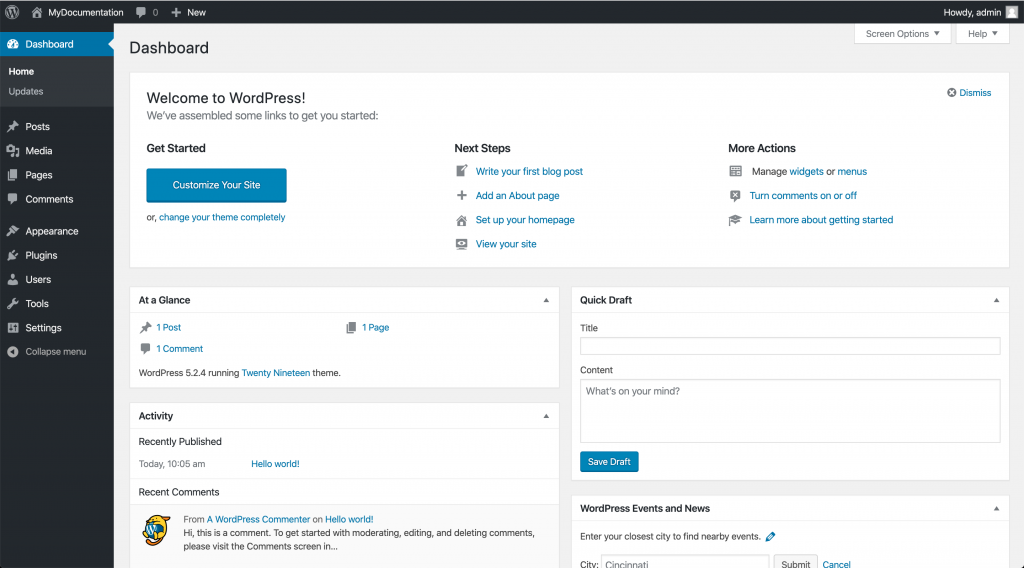
    Let’s say just created a website with WordPress for documentation. Here’s the backend I got.

    New WordPress Dashboard
    Newly created WordPress site for Documentation

    Great! We have the WordPress site means, we are 60% done creating our own documentation site!

    Now, you just need to choose a plugin and an appropriate theme to have the Documentation feature on your site. I have tried several documentation plugins but found only one who is really nice and easy to use. weDocs, which is completely free to use!

    weDocs is free yet super convenient for managing your product documentation.

    How to install and active weDocs?


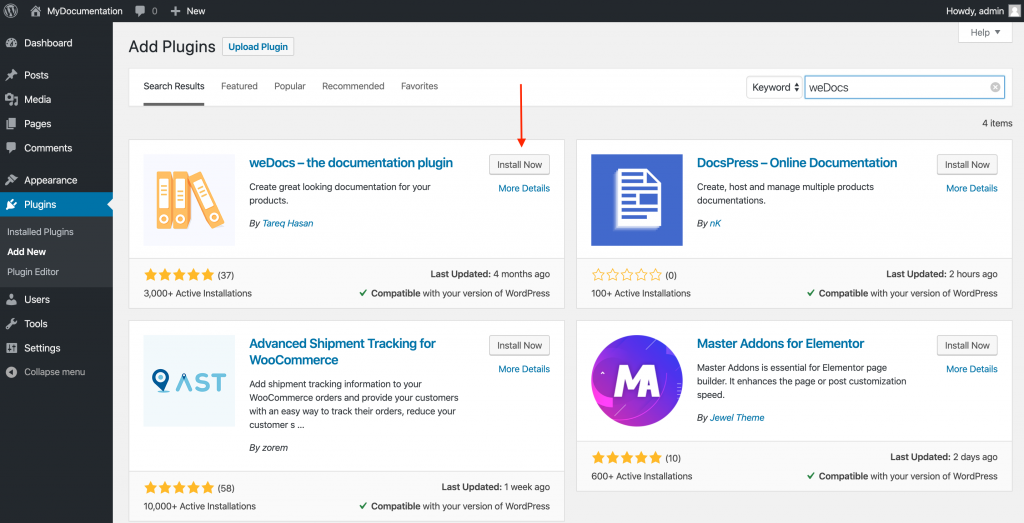
    We’ll install the weDocs plugin first by simply navigating to your website dashboard→ plugins directory. Just search with the name ‘weDocs’

    Documentation plugin
    Installing weDocs on the WordPress site

    Click on install now and then activate it when the installation is complete.

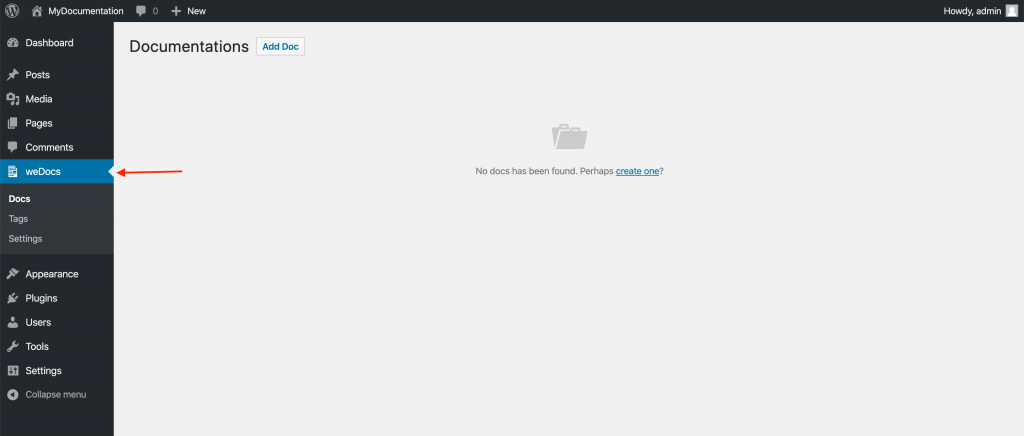
    We’ll get the Docs menu on the left menu bar in WordPress dashboard after activating the plugin, as like the screenshot below:

    weDocs menu
    Documentation menu

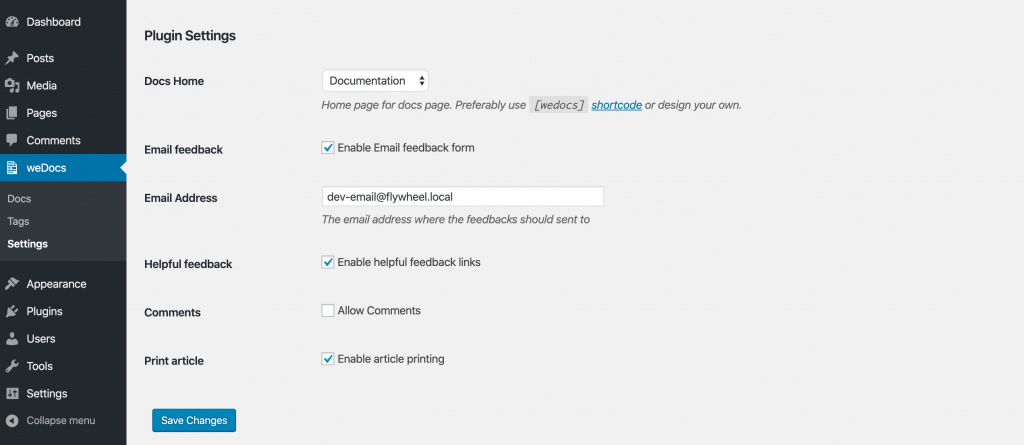
    Let’s complete the basic setup. Navigate to wp-admin→ weDocs→ Settings to get the weDocs settings that need to configure based on your requirements.

    There is 6 simple thing you need to check up before creating the documentation. The page where you like to show the documentation if you want to allow comments, printing documentations, feedback and so on.

    weDocs settings
    weDocs settings

    Note: Make sure your site URL is set to post name from the settings permalinks.

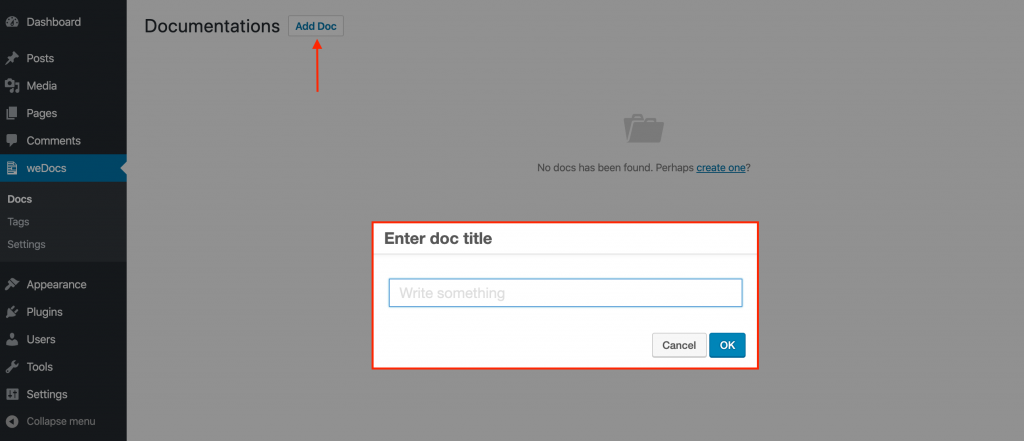
    Now, let’s go back to the documentation. Click on the ‘Add Doc’ button to create your first documentation!

    creating new documentation
    Creating new documentation

    Give an appropriate title for your documentation and click on the ‘Ok’ 🆗button!

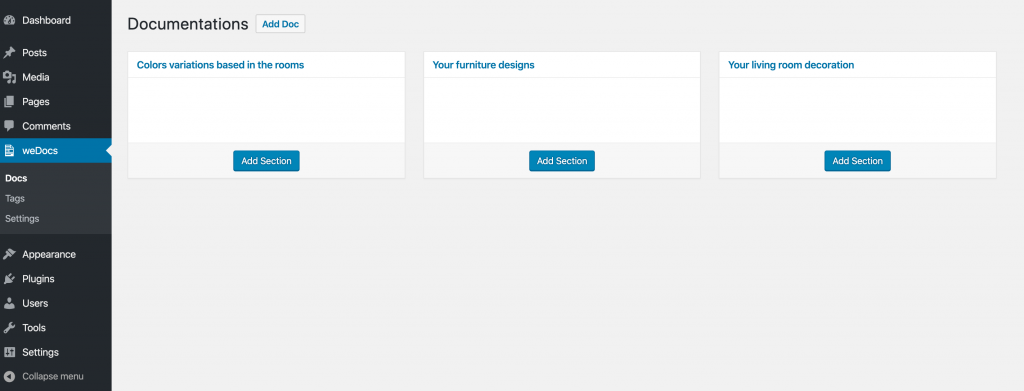
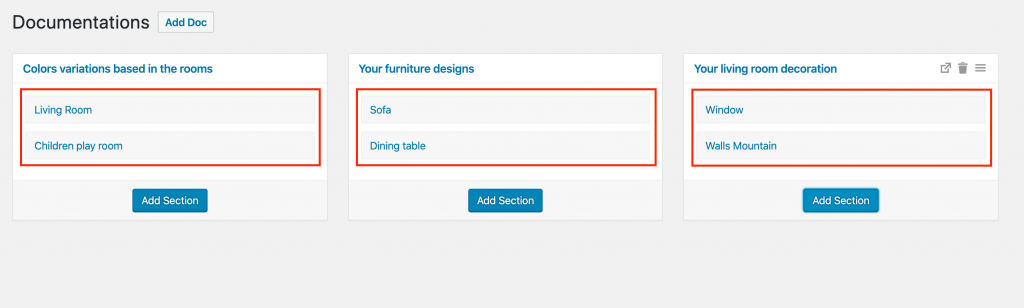
    Documentation sections
    Documentation sections

    I have created 3 different documentations parent category with their appropriate names. Now, before creating the documentation, we need to create sections for individual category and the documentation will be under the individual sections.

    Documentation sections
    Documentation sections

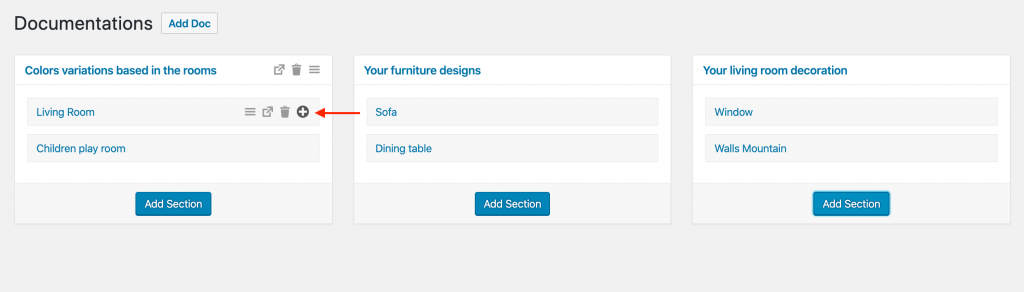
    I have created two sections in each parent category. Here you go, you can create your documentation now under the sections.

    Hover your mouse over the section, you’ll get (+) icon to create a new documentation article. Click on the (+) sign to create your very first article 👏

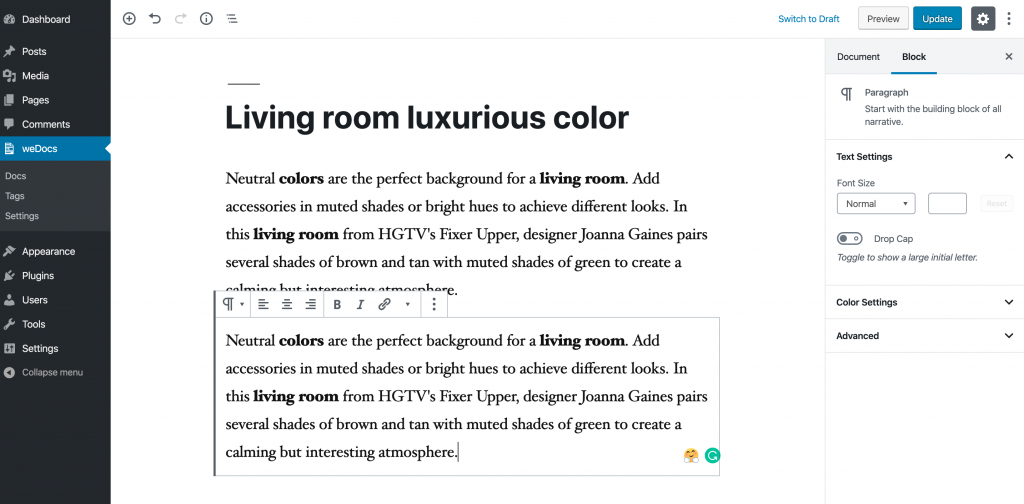
    Give the article title, click on ok to save it! Now, click on the article title to write the article details as you generally write a WordPress post.

    Writing the documentation details in weDocs
    Writing the documentation details

    After writing your article details, click on ‘Update’ to finish it.

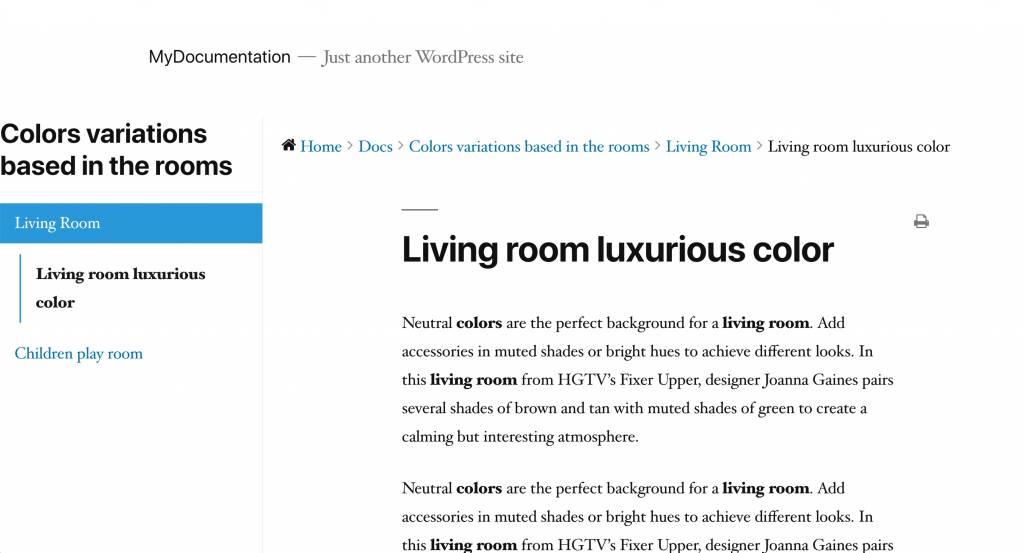
    Well, we are almost done! I have now one documentation article created now. You can see it on the frontend of your website.

    Documentation in the Frontend
    Documentation in the Frontend

    Now, think, you have several categories, sections and documentation created, Fine. So, how to list them on a page where you like to show all of the available documentation?

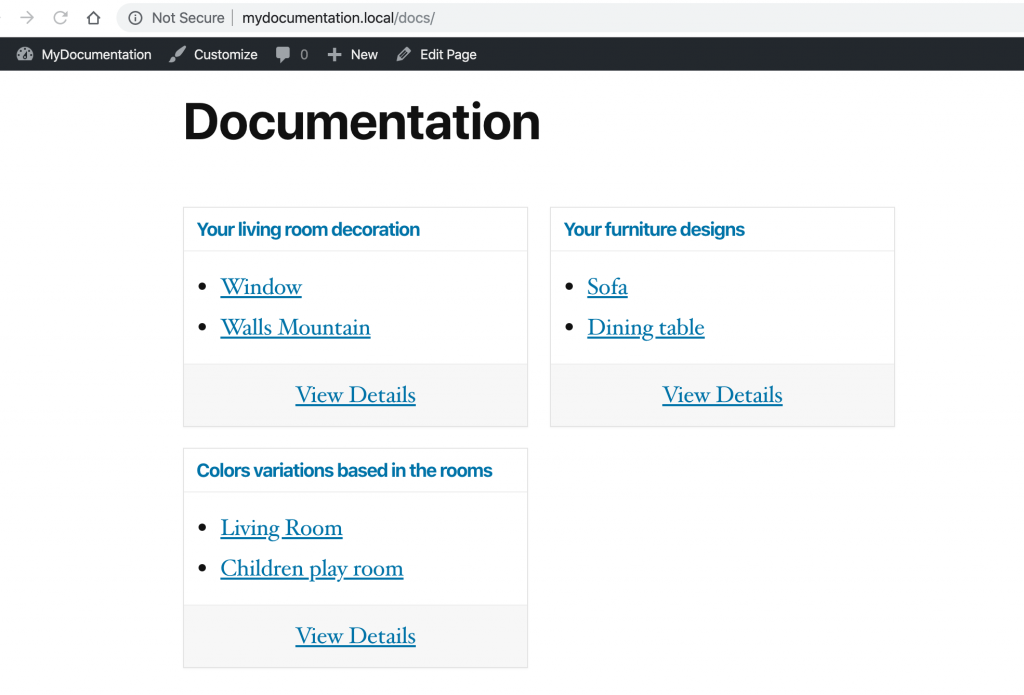
    Simple! Just use the short-code `[wedocs]` on the page where you like to show the documentation list. Here is my page where I used the `[wedocs]` shortcode to render the docs.

    Documentation list

    Not happy with the frontend design? No worries, weDocs has a default theme for it as well which is pretty enough 🙂

    weDoc theme
    weDoc theme

    You can get the theme from this direct GitHub Download link. You can install the theme by navigating to the Appearance→themes→Add new.

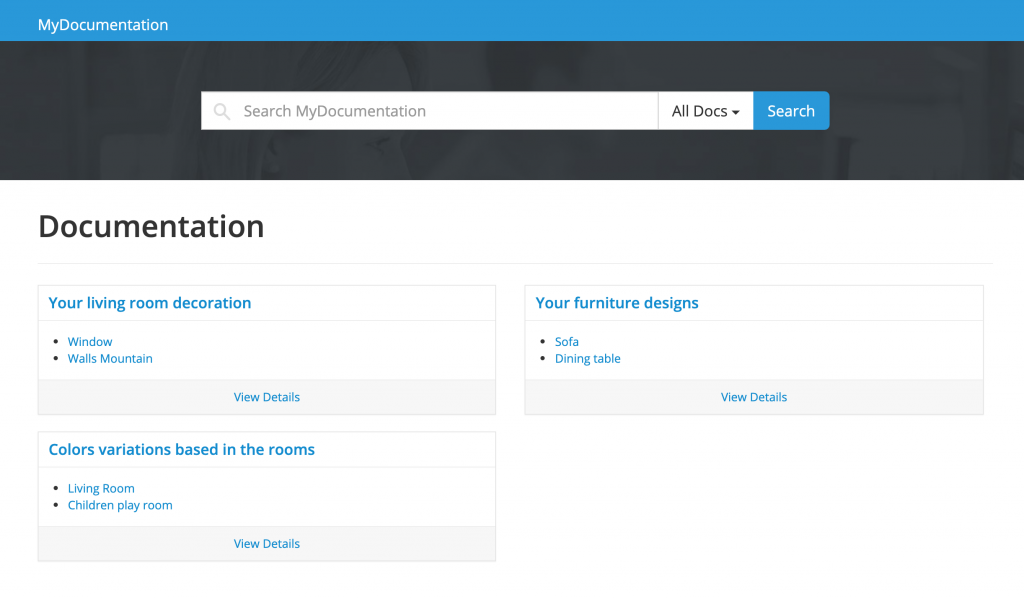
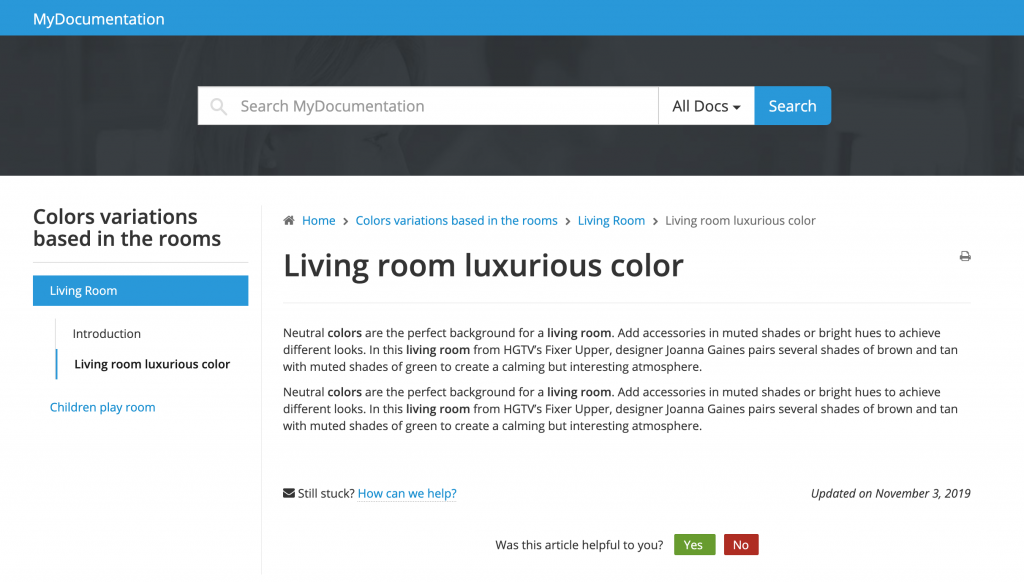
    Frontend design after installing the weDocs theme

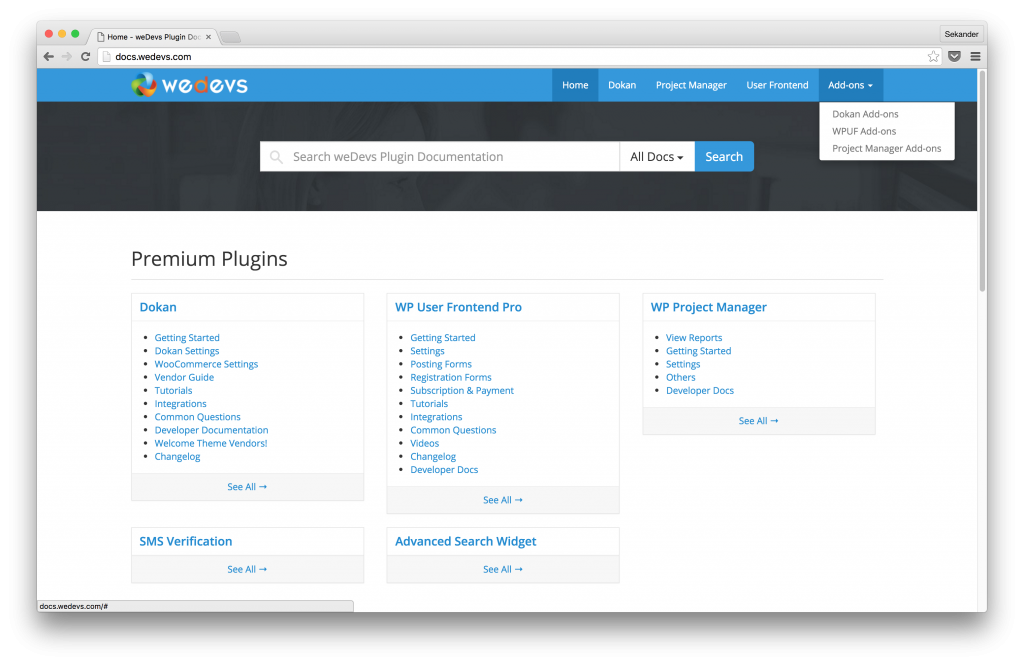
    See, it looks different in both the Docs listing and the docs details in frontend. Looks good, hu? But you can give it a better look than this if you are known with CSS. A little bit of custom CSS can make the look more pretty like the weDevs documentation is 🙂

    Wrapping up

    Creating, managing and reaching with the customer/user with documentation is easier now. It’s even totally cost-free if you have an existing WordPress site.

    Documentation created with weDocs is highly SEO friendly as well as it has the Schema Rich Snippet with it by default, which will help you to get index in the search engines easily.

    It helps to get the user feedback as well whether the documentation you wrote for your products are helping your reader/users/customers or not. weDocs comes with the feedback feature with it by default.

    So, as creating a documentation site is not so hard, you should definitely consider creating an online documentation site if you own a product that requires you to guide the user about its use.

    Pro Tips: People can follow product documentation before purchasing it, so, make it attractive, clean as much as you can 🙂
  • Adding custom fields in default WordPress registration form

    Adding custom fields in default WordPress registration form

    How to add custom fields in the default WordPress registration form?

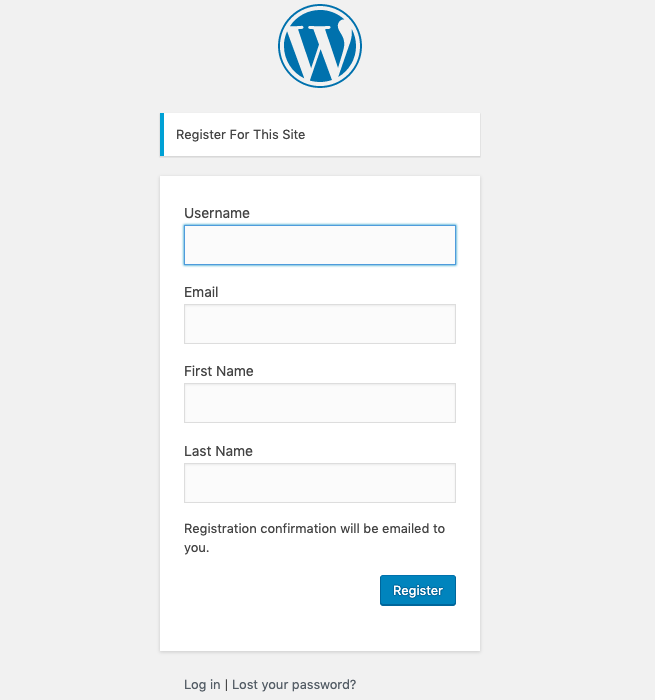
    Disclaimer first! I’m not a coder but sometimes I love to play with codes. I got a task to add the first name and last name field on the default WordPress registration form, for a reason. So, here is the output!

    Before starting, I have googled and found out some tutorial. Most of them are kinda hard to understand, especially for the noobs like me. I mean, who just started to play with PHP.

    I have followed/read several articles on how to add custom fields on the default registration form. I got the idea on available actions that WordPress provide from them. Then started writing my own.

    So many tutorials available out there on the same topic I’m writing but I have tried keeping it as simple as I can.

    Before starting, we need to find the available action/filters that WordPress provides and usages on the registration process. Read the code below:

    add_action( 'register_form', 'wedevs_registration_form' );
    function wedevs_registration_form() {
    	?>
    	<p>
    		<label for="first_name">
    			<?php esc_html_e( 'First Name', 'first_name' ) ?> <br/>
    			<input type="text" class="regular_text" name="first_name" />
    		</label>
    	</p>
    	<p>
    		<label for="last_name">
    			<?php esc_html_e( 'Last Name', 'last_name' ) ?> <br/>
    			<input type="text" class="regular_text" name="last_name" />
    		</label>
    	</p>
    	<?php
    }

    Here, register_form is an action, available in WordPress. And wedevs_registration_form is the function we have declared. The rest is HTML to take the First Name and Last Name input fields to print on the registration form and to take data/value from the user.

    Printing/adding two fields on the registration form is done. You can check it now.

    Well done! Now, what if the user registers with that form? Will the inputted names be saved on the user profile? NO. It won’t. Because we have not told the system to save them yet!

    Before saving the data, we actually need to validate the fields. What will happen if the user keeps First Name and Last Name blank where you like to have the mandatory? It needs to provide an error that you have not provided your names. Right? Let’s do it!

    // Field validation
    add_filter( 'registration_errors', 'wedevs_registration_errors', 10, 3 );
    function wedevs_registration_errors( $errors, $sanitized_user_login, $user_email ) {
    
    	if ( empty( $_POST['first_name'] ) || empty( $_POST['last_name'])  ) {
    		$errors->add( 'first_or_last', __( '<strong>ERROR</strong>: First or Last name is missing', 'wedevs' ) );
    	}
    
    	return $errors;
    }

    The filter we user registration_errors , provides by WordPress and we had to declare our function for validating the names. We used wedevs_registration_errors, you can use your own. I kept a single error for both of the fields, first name, and last name. You can have separately as well.

    Well, fields validation is done. Now, we have to tell the system to save the field value if the fields are not empty. Here we go:

    add_action( 'user_register', 'wedevs_save_data' );
    
    function wedevs_save_data( $user_id ) {
    	if ( ! empty( $_POST['first_name'] ) ) {
    		update_user_meta( $user_id, 'first_name', trim( $_POST['first_name'] ) ) ;		
    	}
    
    	if ( ! empty( $_POST['last_name'] ) ) {
    		update_user_meta( $user_id, 'last_name', trim( $_POST['last_name'] ) );
    	}
    }

    We need to use action user_register provided by WordPress. And same declaring the function our own. Here, if the field first_name is not empty, then update the user meta with the value of first_name.

    Same for the last name.

    We have written the whole code but I have not mentioned where to add these codes? Haha! You can have the codes in two way. Inserting these codes on your theme/plugin functions.php or, you can simply create a plugin for this!

    Creating a plugin, OMG! Sounds hard, right? But trust me, it’s an easier task than you did last few minutes. Let me mention the process:

    • Create a folder naming ‘Custom Fields in Registration’ (You can have it your own name)
    • Create a PHP file naming functions.php and save into it.
    • Insert your codes on that functions.php file.

    This is it? I’m sorry but no. You need to add few lines top of the functions.php to tell the system it’s a plugin that you can install on your WordPress system. Here is a sample:

    <?php
    /*
    Plugin Name: Custom Registration Form
    Plugin URI: www.thebengalboy.com
    Description: This plugin will add two extra fields on your default registration form.
    Version: 0.1
    Author: Mehedi Hasan
    Author URI: www.thebengalboy.com
    License: GPLv2 or later
    License URI: http://www.gnu.org/licenses/gpl-2.0.html
    */

    Declaring this in the top will make your simple and single coded file into a WordPress plugin.

    Now, you can zip the folder and install it on your site. It will add two extra fields for First Name and Last Lame on your WordPress registration form.

    Try it now. Cheers!

  • How to fix the conflict between WP Project Manager and Awesome Support plugin

    How to fix the conflict between WP Project Manager and Awesome Support plugin

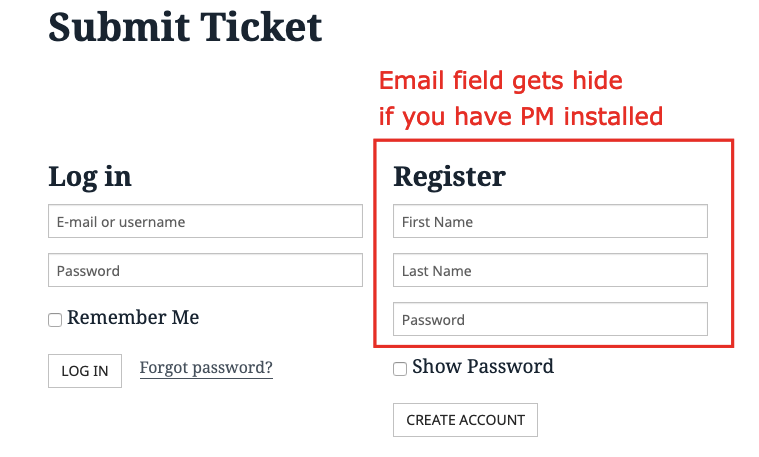
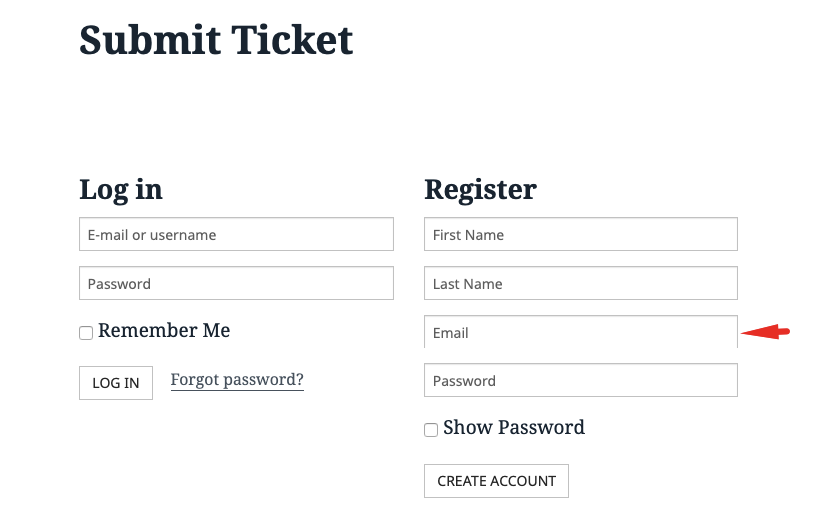
    I found a conflict between the WP Project Manager, a leading WordPress based Project Management solution and the Awesome Support plugin a few days ago. Not a major conflict but if someone has both the WP Project Manager and Awesome Support plugin installed, the email address field in the Awesome Support registration form doesn’t show.

    Somehow a function of WP Project Manager overlapping with the Awesome Support plugin. I guess, you already know how to find conflicts between plugins or themes.

    Fix conflict between WP Project Manager and Awesome Support

    I found the function that is conflicting widely used in WP Project Manager. So, it’s not possible to change that particular function with the WP Project Manager instantly or at least, at this moment.

    But, I found an alternative way to get rid of it. You can implement it as a temporary solution.

    Open the file directory below:

    …/wp-content/plugins/wp-project-manager/libs/validation-rules.php

    And comment out the line number 11 & 12. Following codes:

    function email( $value ) {
        return is_email( $value );
    }

    After commenting out the above, reload the Awesome Support Registration form. See! the Email field is there.

    Note: I have not found any impact of disabling the function in WP Project Manager yet. So, I’m not sure where you are going to get stuck but it fixes the conflict problem for now at least.

    Questions are happily acceptable 🙂

  • Validate Duplicate Display Name with WP User Frontend

    Validate Duplicate Display Name with WP User Frontend

    WP User Frontend is a form builder which let you create custom post and registration form. It has plenty of custom fields available for both post form and registration form, you may already know that.

    I”ll not discouss about the features of WP User Frontend here, rather you can find it here.

    WPUF- is the short form of WP User Frontend and I’m going to use this rest of my post.

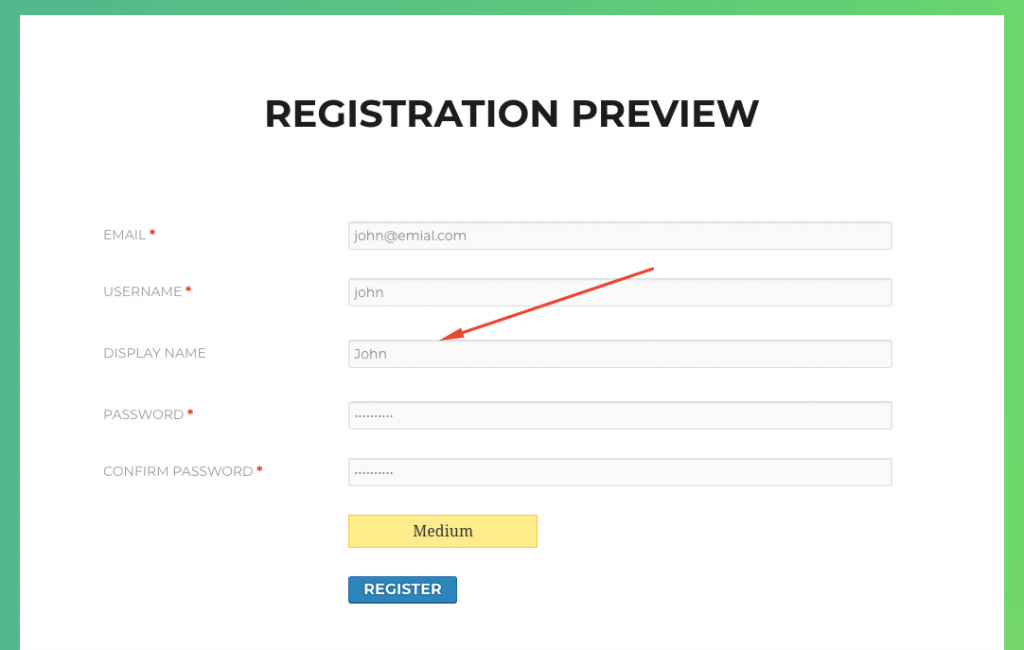
    However, with the WPUF ‘username’ filed, you can validate the duplicate username of your site. Like: someone used ‘John’ as a username while registering but someone already has registered with this name. So, it will validate the name and provide a notice to the user that someone already taken this name, you need to choose any other name.

    How to validate display name in WordPress registration

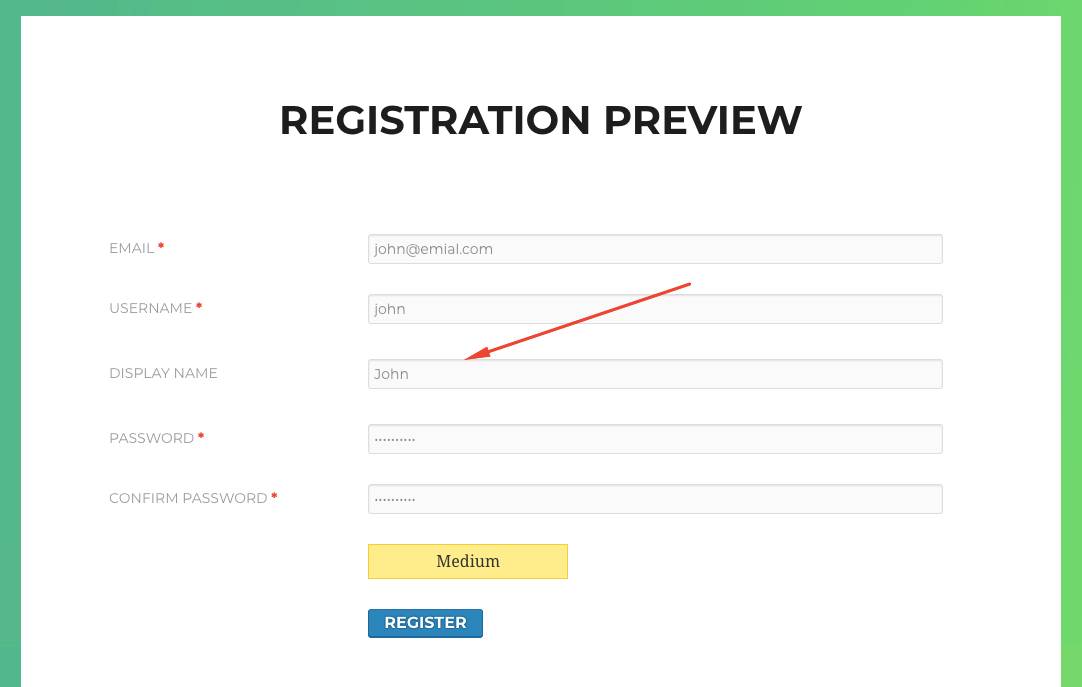
    That’s all good! but what if you like to validate the Display name as well? The default Display Name field of WPUF doesn’t offer to validate. Actually, most of the cases, it doesn’t require to validate the Display name as Display name can be the same for several users, it doesn’t really matter.

    [irp]

    Some days ago, one of our WPUF users needed this and we came with a solution for this. Actually, I was taking care of him but he created the snippet his own and shared with me to provide it to the people, if someone needs in the future. Kuddus to #Chris Arnold

    Here is the snippet he used and shred with me:

    // CUSTOM -- if any display name given, check if it exists
    
    if ( $this->search( $user_vars, 'name', 'display_name' )) {
    
    $display_name = sanitize_user( trim( $_POST['display_name'] ) );
    
    global $wpdb;
    
    $query_cnt = $wpdb->get_var( $wpdb->prepare( "SELECT COUNT(ID) FROM $wpdb->users WHERE display_name = %s", $display_name ) );
    
    if ( $query_cnt == 1 ) {
    
    $this->send_error( __( 'Sorry, Display Name is already in use. It needs to be unique.', 'wpuf-pro' ) );
    
    }
    
    }

    Use this snippet on your function.php file. The Display name should validate now on the WPUF registration form 🙂

    Validate display name WordPress registration