In some cases, weForms users face the blank screen on the weForms settings if they have the LearnPress installed. The same may happen for the LeanPress settings or both of them.
Insert this snippet in your theme function.php file and save it.
Note: It’s good to have a backup before adding codes to a file. Please make sure you have taken a complete backup of your site or the file you are editing.
The default WooCommerce product upload form for vendors has limitations. And it’s too hard to have custom fields on the form unless you are a good coder! However, WP User Frontend is a smart choice in that case for the non-coder people. WPUF let users create a product form with the custom fields. You can learn how to create WooCommerce Product form with WP User Frontend
I’ll discuss a little trick on how you can manage your WooCommerce product stock with the custom fields of WPUF.
Before starting, I hope you already know how you can create a WooCommerce product form with WP User Frontend, which is important to read further.
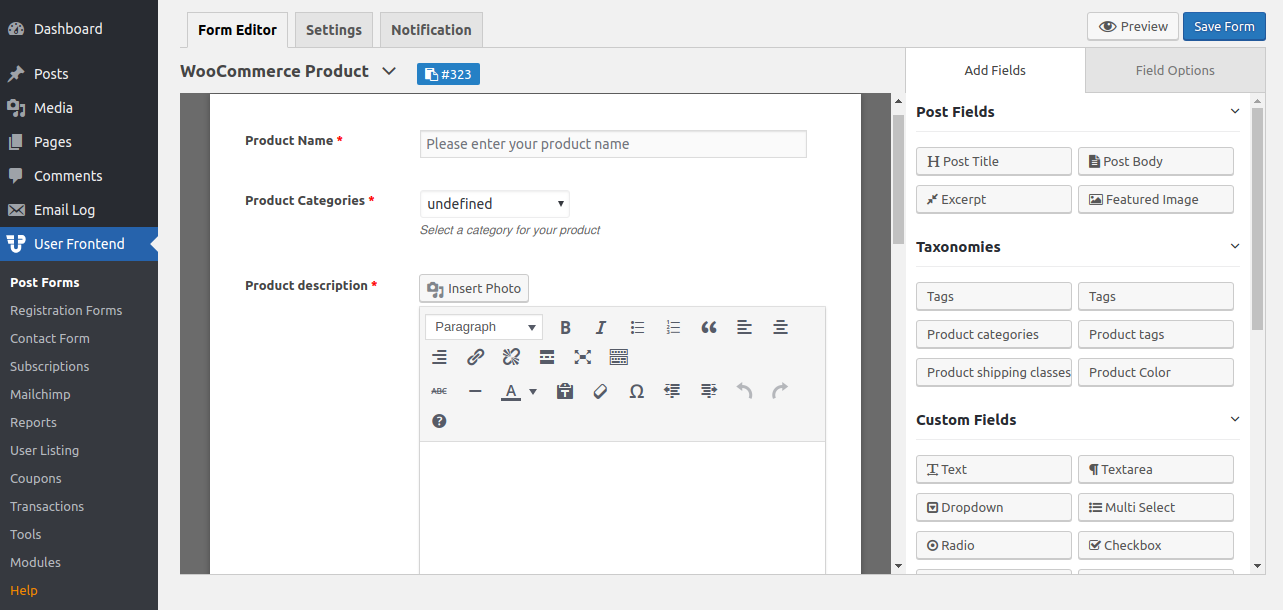
I assume you have a form with the basic fields as below. You can create on by navigating to wp-admin→user frontend→post forms→create new→WooCommerce product form.
Well, this is the basic template of WPUF WooCommerce product upload form. You can add more available fields on it. WPUF has a lot of custom fields.
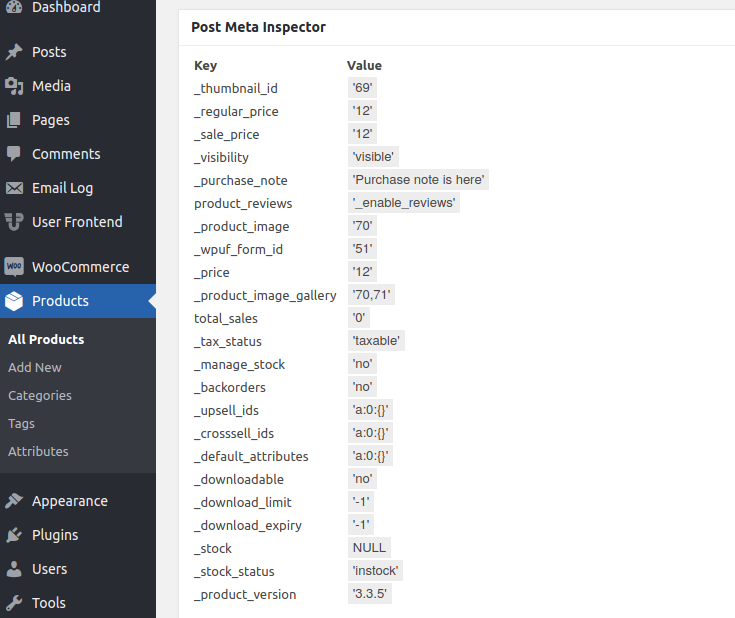
So, to manage your product(that you’ll upload with this form) stock, you’ll need to find the necessary meta_key(s) from WooCommerce product. I’m not going to describe how you can get the available meta keys. I generally use ‘Post Meta Inspector‘ to find the available meta keys of a post/product. You can try it.
On the screenshot above↑↑, we can see the available meta_key list of a product. You can find them on the product edit page if you have Post Meta Inspect installed.
We’ll need the _stock and the _manage_stock meta_keys to manage the product stock.
Now, go back to the product form. [navigate to wp-admin→Wp User Frontend→Post Forms→Edit the form(product form that you use to upload the product)].
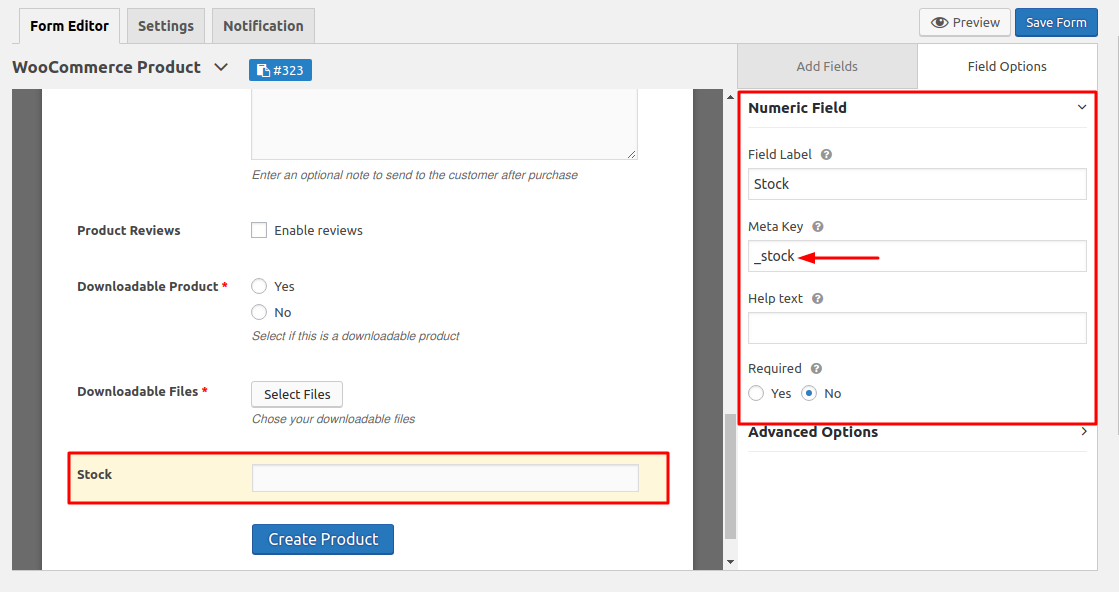
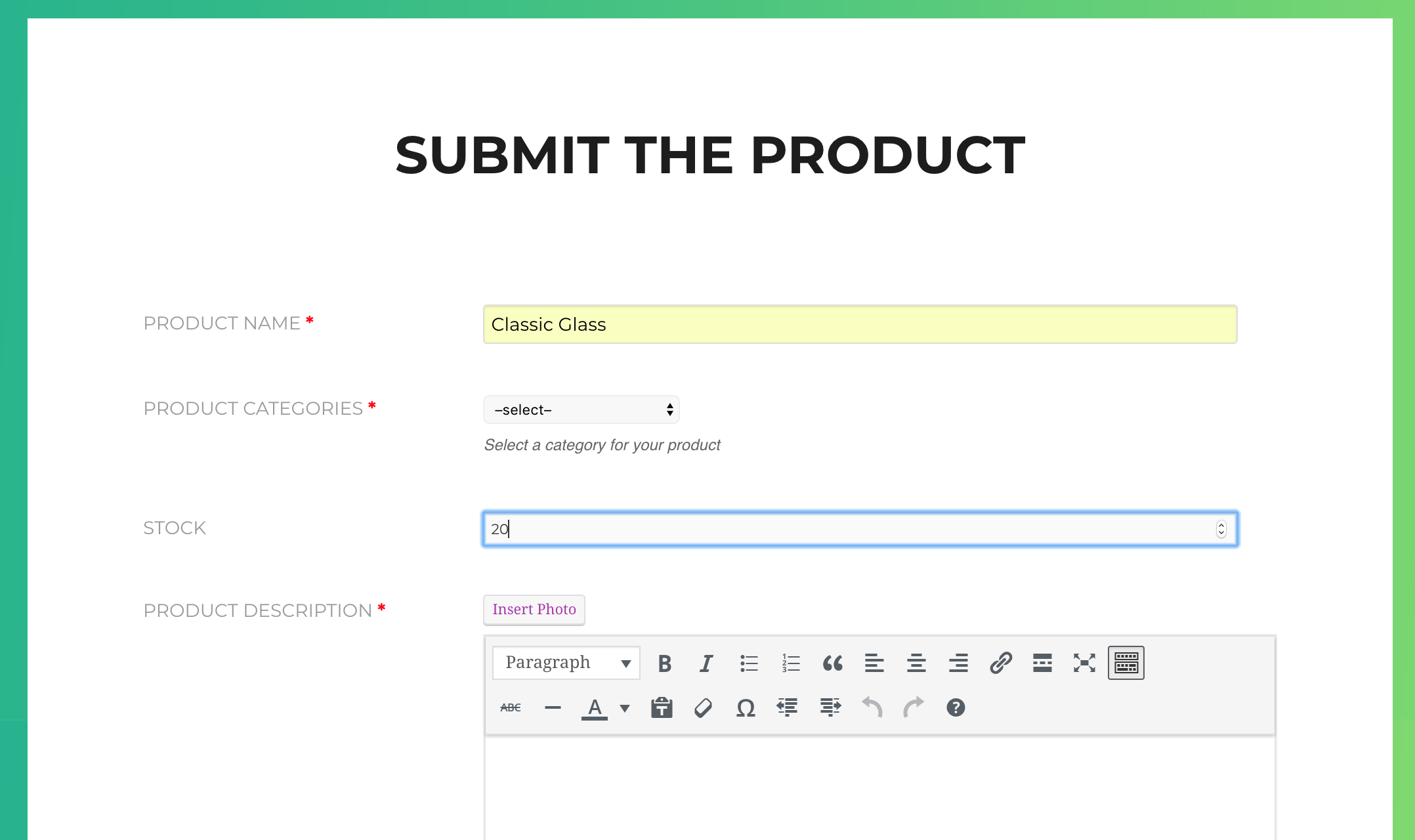
We will need to add two different fields with these two meta_key. A numeric field with the meta key _stock as below:
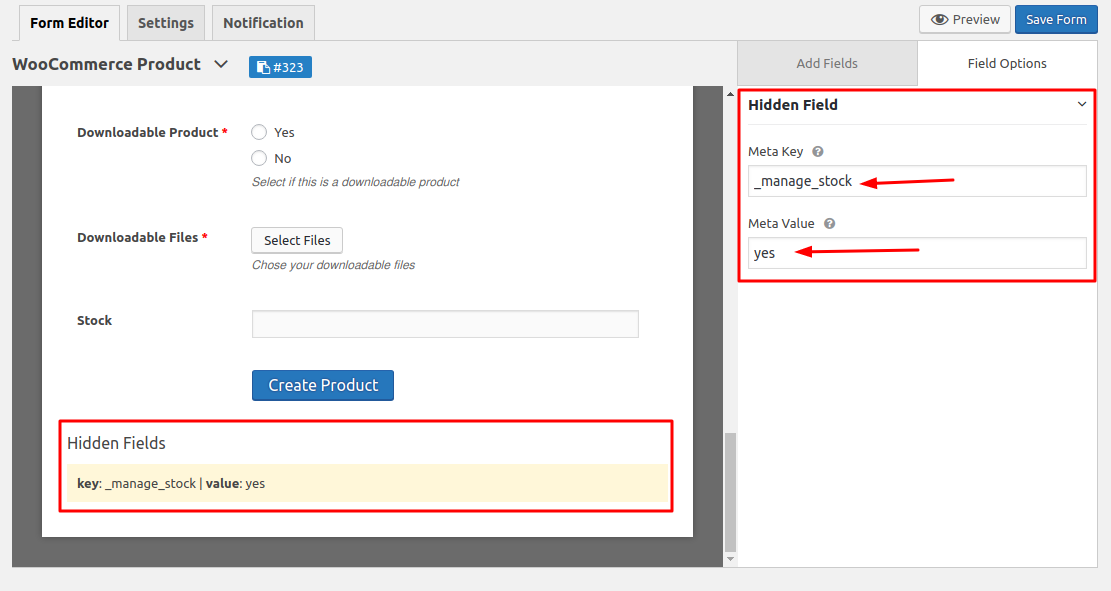
And a hidden field with the meta key _manage_stock. Keep the value yes of that field. See the screenshot below:
You are all set! Now, submit the form from the frontend. (I hope you already know how to insert the form short-code to a page). On the product upload form, insert the available product quantity.
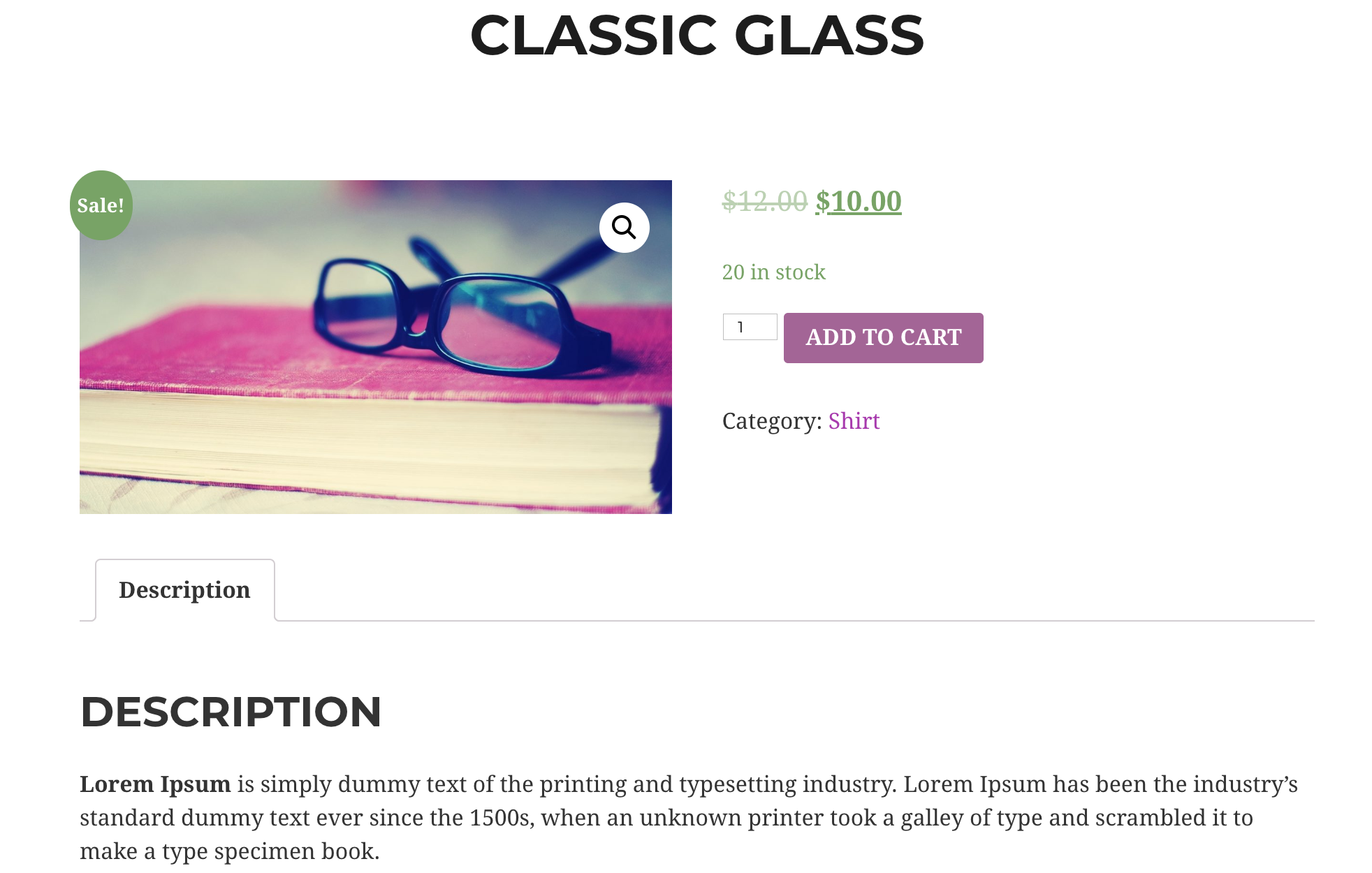
After submitting the product, view the product details in the frontend. Here you’ll see the product with the available quantity ↓↓
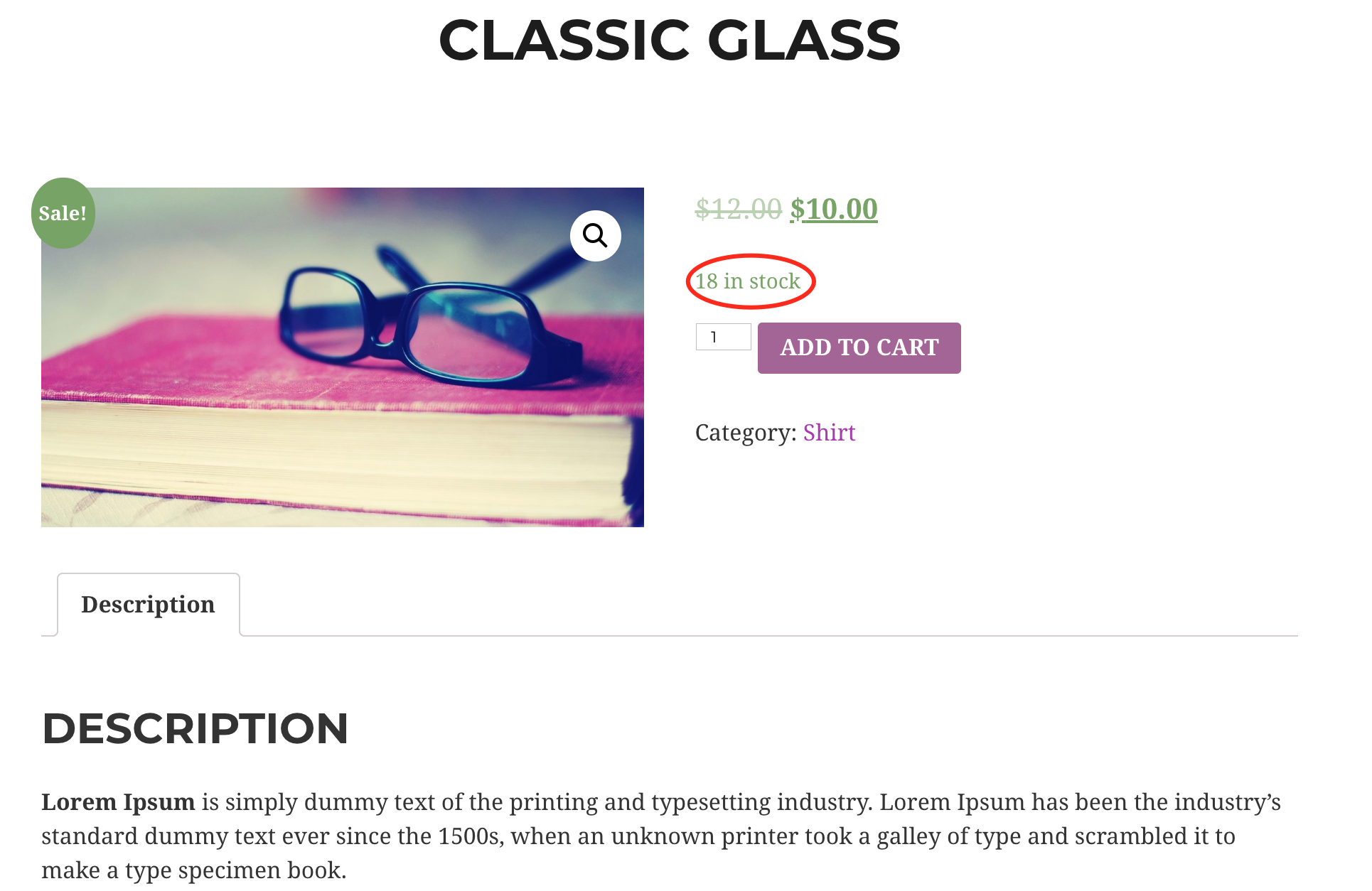
Well, that’s great but what will happen after selling an item from the total quantity? I’ve made a test purchase of this product and it’s dynamically showing the available stock quantity after getting 2 items sold ↓↓
Wrapping up
WooCommerce product upload is a great feature of WP User Frontend. It has a basic template for this by default which you do not need to change anything. But, the basic template doesn’t have the product management fields with it because everyone doesn’t need to manage the stock. This little trick won’t be so hard for you, I guess 🙂
Dear Dokan marketplace owners, it’s better to read the latest updates/news about Dokan on the dashboard. It will keep you updated about the tips-tricks and updates of Dokan.
However, if it really bothers you and does not want to see it anyway, you can hide it. Display none is the simplest way but the fact is, there was no specific class for this.
Anyway, here is a snippet that you can insert into your theme function.php file. It’ll hide the Dokan News Update from your dashboard.